The QR in the first draft was correct. Then the layout changed, an image was replaced, and a compressed proof went out for approval. At print sign-off, the question is specific: does the exact image in this final artwork still carry the approved link?
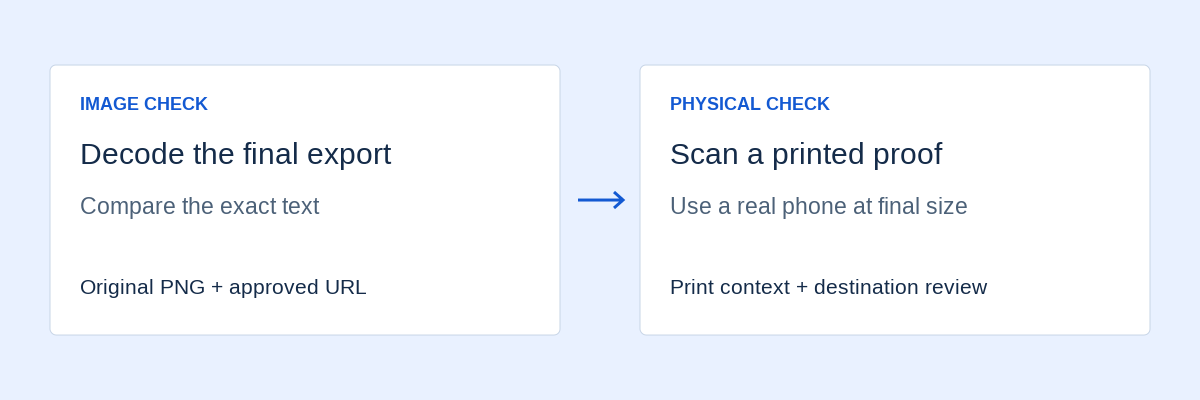
Use two checks with different purposes. Decoding an image reads its contents. Scanning a physical proof tests whether a real phone can read the placement in its final context. Neither check replaces approval of the destination itself.
Collect the reference before testing
- The approved final URL as plain text, including its campaign parameters.
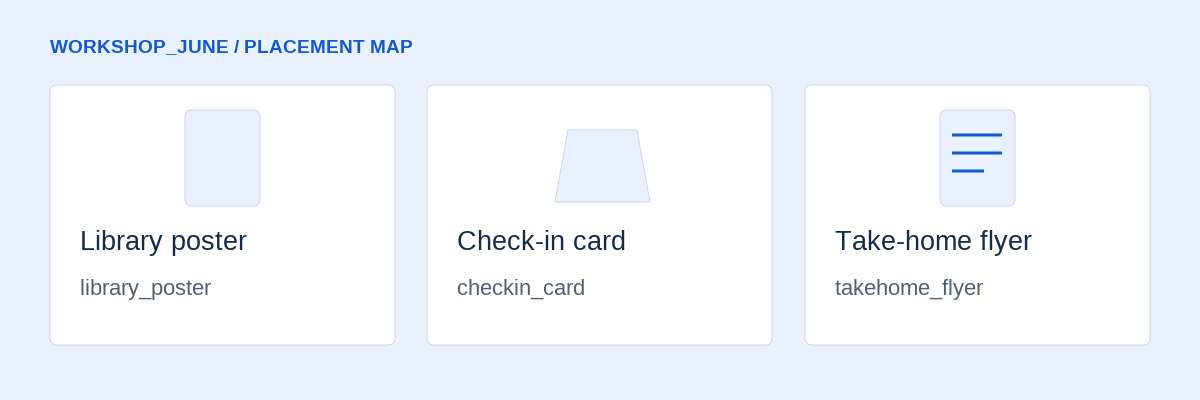
- The placement name, such as welcome-desk card, rather than just a filename.
- The actual image or artwork export being sent to print.
- A note of who can approve changes to the destination or campaign values.
If you cannot identify the approved reference, ask the campaign owner to provide it before sign-off. A QR that decodes into a plausible URL is not enough evidence that it is the correct version.
Decode a local image
- Open QR Decoder and choose the image from your device using the file control.
- Run the decoder. The selected file is processed in your browser; the tool does not upload it.
- Copy the recognized text and compare it with the approved URL.
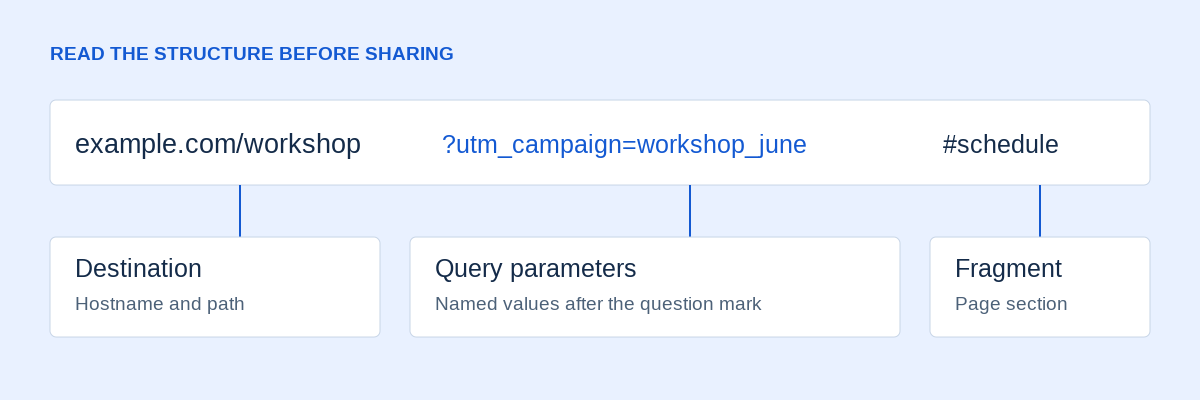
- If it is a URL, paste it into URL Parser to read the hostname, path, and campaign values.
- Record the comparison result next to the placement name.
The decoder reads selected images, not a live camera feed. The input limit is 10 MiB and 16 million decoded pixels. Difficult, blurred, distorted, or incomplete images may not decode. Browser memory can impose practical limits even before decoding starts.
If the decoder finds nothing
Start with the original PNG from QR Generator, not a screenshot of a small preview. Avoid cropping the quiet zone. If the original decodes but the artwork does not, inspect the design export for scaling, compression, cropping, or visual interference.
Do not infer that an unreadable image contains no URL. A failed decode means this tool did not recover recognized text from that input. Try a clearer original and perform the physical phone test. A plain non-QR image is a useful negative test when checking the tool’s empty-result feedback.
Scan the final physical proof
Print at the intended physical size. Use a phone to scan from the expected distance and under realistic lighting. Keep the code clear of folds and edges. If the material will be viewed behind glass or on a curved surface, test that context too.
Before opening any decoded link, check the hostname deliberately. Campaign Relay does not automatically open links from QR images, check destination safety, or verify that a live page is available.
Keep approval attached to the exact version
Save the tested image with its placement-specific filename and the approved URL. If the artwork changes afterward, repeat the decode and phone scan. A static PNG encodes its original text; editing the campaign sheet does not update images already in circulation.
For an internal dry run, generate the workshop example in QR Generator, save its PNG, and read it back here. The expected text is the same complete URL you entered, not a shortened link or a newly hosted destination.