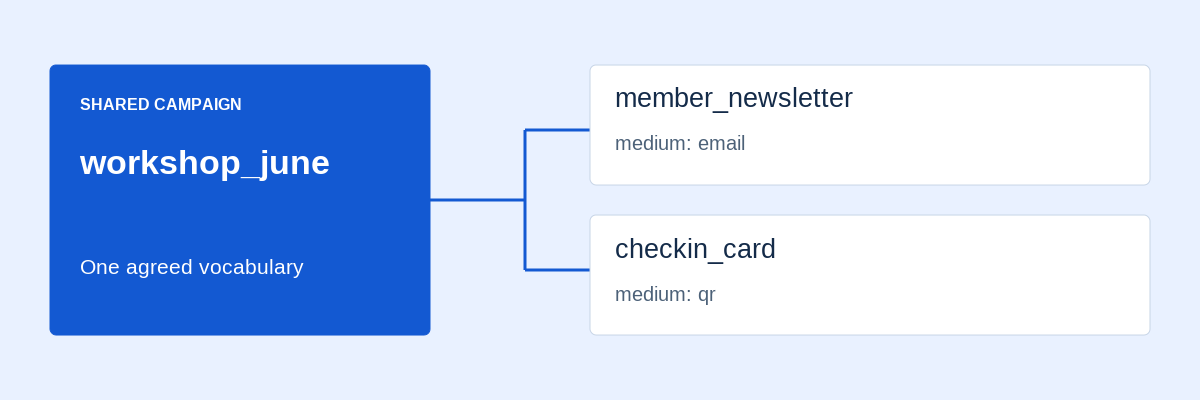
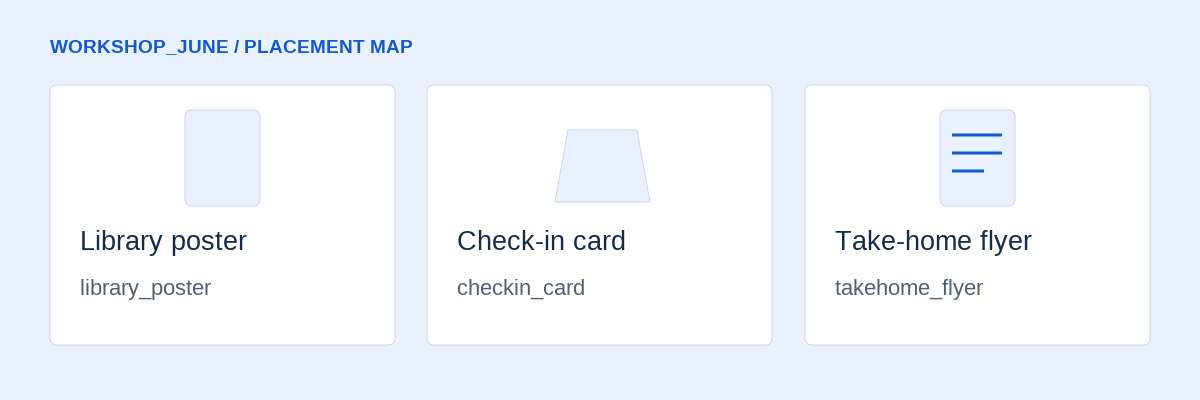
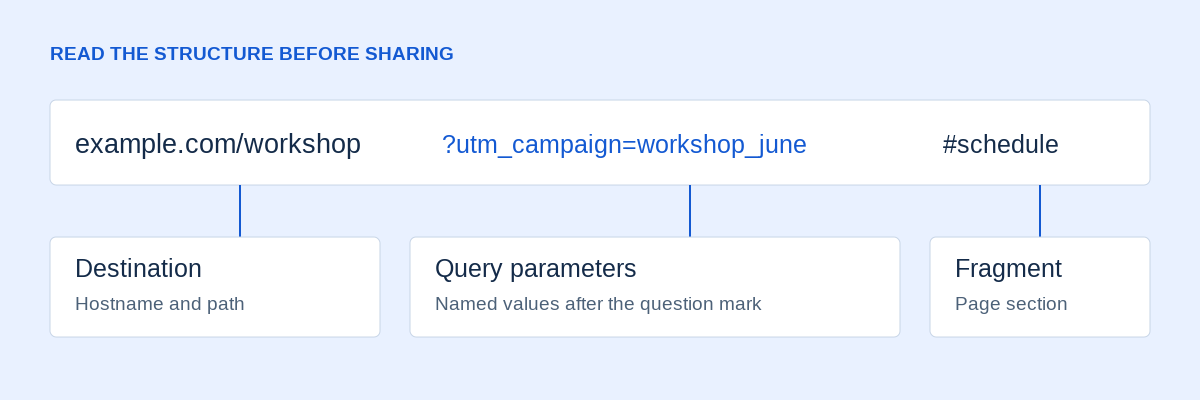
A partner asks for “the tracking link,” but there may be several placements in the plan: a newsletter button, a resource-page link, and a printed card. Sending an unexplained URL encourages guessing. A compact placement note tells the partner what to publish and gives your team something concrete to approve.
Start with the publishing context, then build the link. The UTM values should describe the arrangement your reporting team expects, rather than the wording of an email subject line.
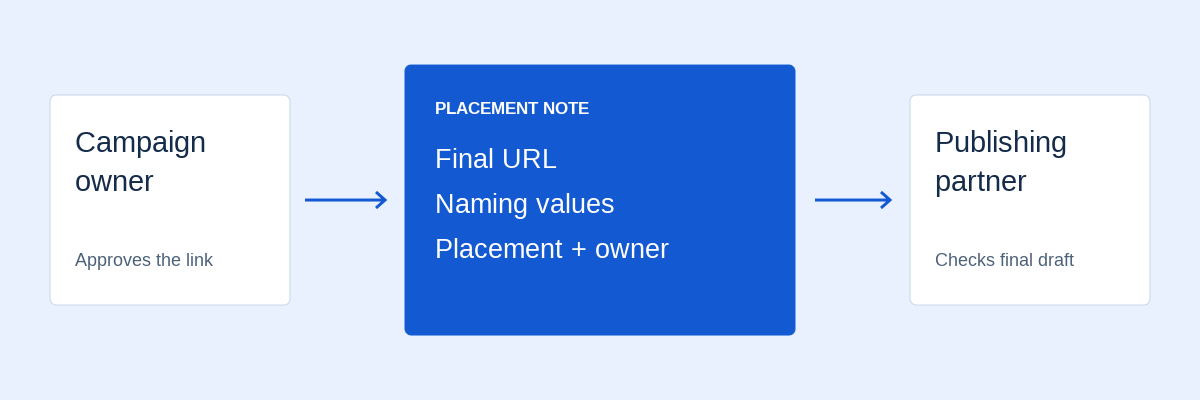
Write the placement note first
Placement: partner newsletter, primary button
Destination: https://example.com/workshop
Source: community_partner
Medium: email
Campaign: workshop_june
Content: primary_button
Owner: campaign team
Approval: compare final link before scheduling
The source names the agreed origin. Content distinguishes this button from another link in the same newsletter. Do not put private contact details, recipient identifiers, or confidential information into these values. They become part of a shareable URL.
Build the exact variant
- Open UTM Builder and paste the approved destination.
- Enter source
community_partner, mediumemail, campaignworkshop_june, and contentprimary_button. Leave term empty. - Generate the result and copy it without manually rearranging or shortening the text.
- Inspect the finished URL in URL Parser. Check the path and all four values against the note.
https://example.com/workshop?utm_source=community_partner&utm_medium=email&utm_campaign=workshop_june&utm_content=primary_buttonThe reserved example domain is used only to illustrate the fields. Query ordering may vary without changing these values. Replace the destination with your approved real URL for a live placement.
Send a handoff that can be checked
Send the placement name, the complete final URL, and the approved values in one message or document. Ask the partner to paste the full URL into the intended button and return the actual link from the final draft for comparison. Do not assume a shortened display label in an email editor is the full destination.
If there are two calls to action, provide two labeled links. Keep the campaign stable and change content only according to the team’s naming convention. A partner should not need to reverse-engineer which URL belongs to each button.
Separate link approval from delivery-system behavior
An email service may wrap links for its own tracking. Campaign Relay does not fetch that wrapped link, follow its redirects, or verify the email provider’s behavior. Compare the configured original destination in the publishing system and use that system’s test-send process for the delivered email.
Likewise, a generated UTM URL does not prove that analytics is installed or that a campaign will appear in a particular report. Verify those questions in the relevant reporting setup rather than treating a URL preview as measurement evidence.
Close the loop after a change
- If the destination changes, rebuild and recheck every affected variant.
- If only the button wording changes, confirm whether the existing content label still makes sense before editing the URL.
- If a partner adds a printed placement, create a separate approved link and pass it to QR Generator instead of reusing an unrelated email variant.
- Keep the final approved placement note with the campaign record so the next person can continue without reopening the email thread.
The goal is a small, repeatable handoff: a clear placement, a readable naming decision, and an exact final link. Start the next one in UTM Builder.